

A couple of months ago, a reader had reached out to report a negative development from Southwest: the reader reported that both Player 1 and Player 2 were Southwest Companion Pass holders but were unable to add both of their companions to the same reservation. This is a bit of a niche situation, but I’m glad to report that there is a workaround if you find yourself in the same shoes: use the app.
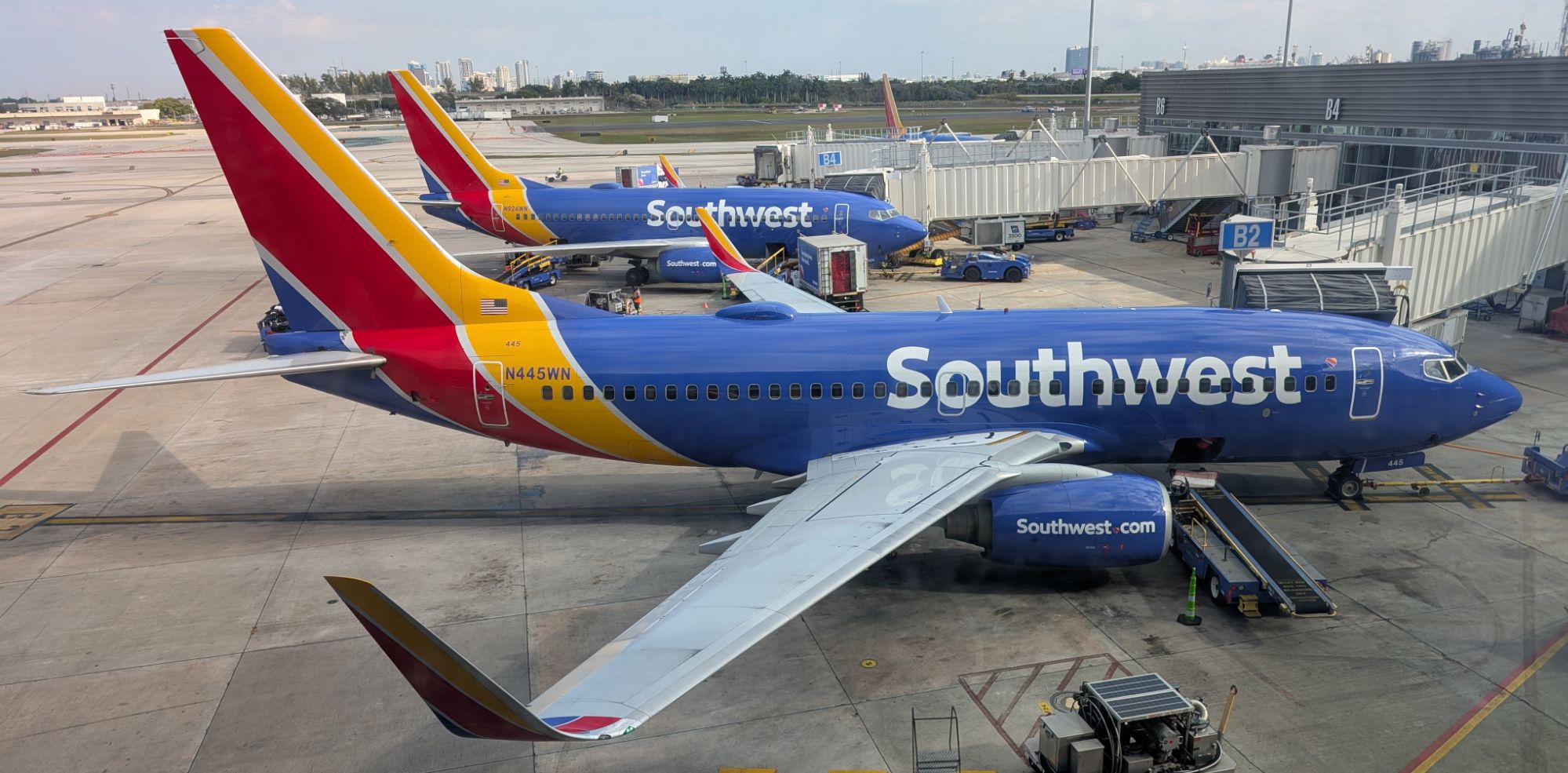
The Premise: 2 Companion Pass holders traveling together
My wife (henceforth Player 2) and I (Player 1) currently both have Companion Passes. That works out well since we have two sons. One son (who we’ll refer to as Kid 1) is my companion, and the other (henceforth Kid 2) is my wife’s companion.
The problem that the reader was describing was like this:
- Player 1 makes a flight booking, paying the full fare (whether with cash or points) for Player 1 and Player 2 on the same reservation.
- Player 1 and Player 2 should theoretically both be able to add their respective companions (in other words, Player 1 should be able to add Kid 1 and Player 2 should be able to add Kid 2).
- However, the desktop site does not allow this. In our case, after Player 1 added his companion (Kid 1), Player 2 could not add her companion.
- The reader who pointed this out reported being advised by customer service that this was a recent change and that the only way to accomplish this now is to have Player 1 and Player 2 under separate reservations. That’s not always ideal for a variety of reasons.
In our case, to test this, we actually made two bookings: Player 1 booked a reservation for both Player 1 and Player 2 using Player 1’s points. Then, Player 2 did the same thing for a different flight (using Player 2’s points). Next, Player 1 added the companion, Kid 1, to both bookings without issue.
However, when Player 2 pulled up the booking in her account, it didn’t show any button to add a companion. Instead, the system seemed to recognize that a companion was added. There was a link to “view companion details”.
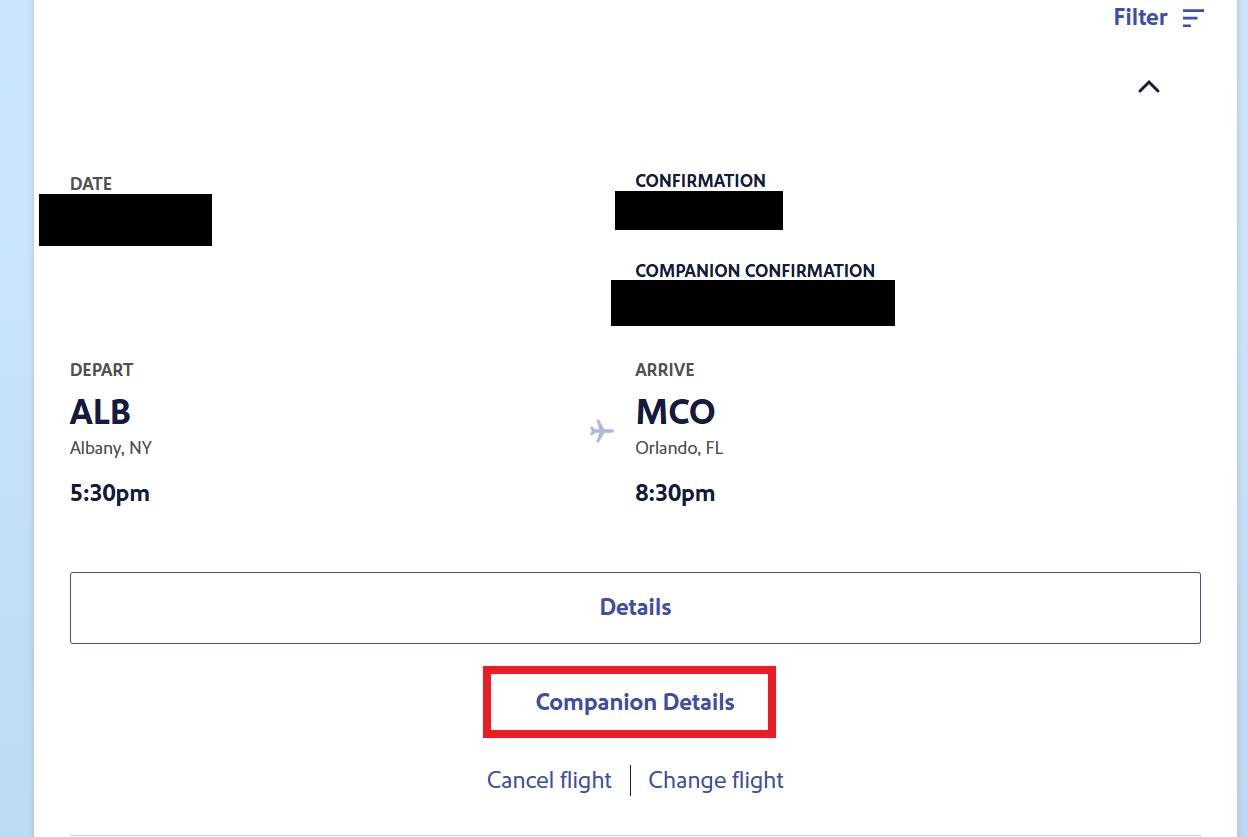
When she clicked that link, the system threw an error saying that there was a name mismatch.
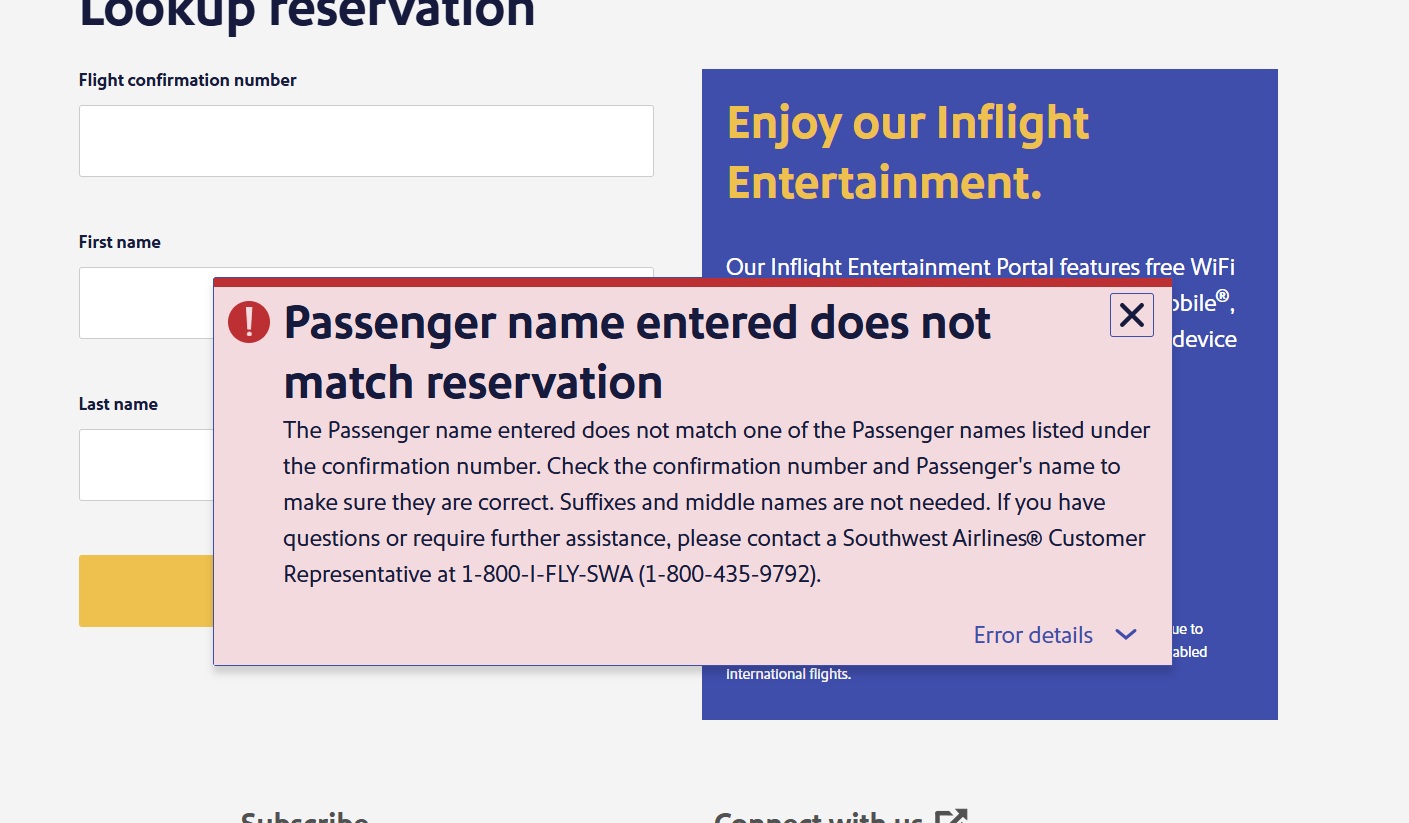
That was likely because the companion associated with the reservation was my companion (Kid 1), and the system recognized that Kid 1’s name didn’t match my wife’s companion (Kid 2). The reservation did show Kid 1’s confirmation number associated, but my wife couldn’t pull up Kid 1’s reservation in her account, despite it showing as being associated.
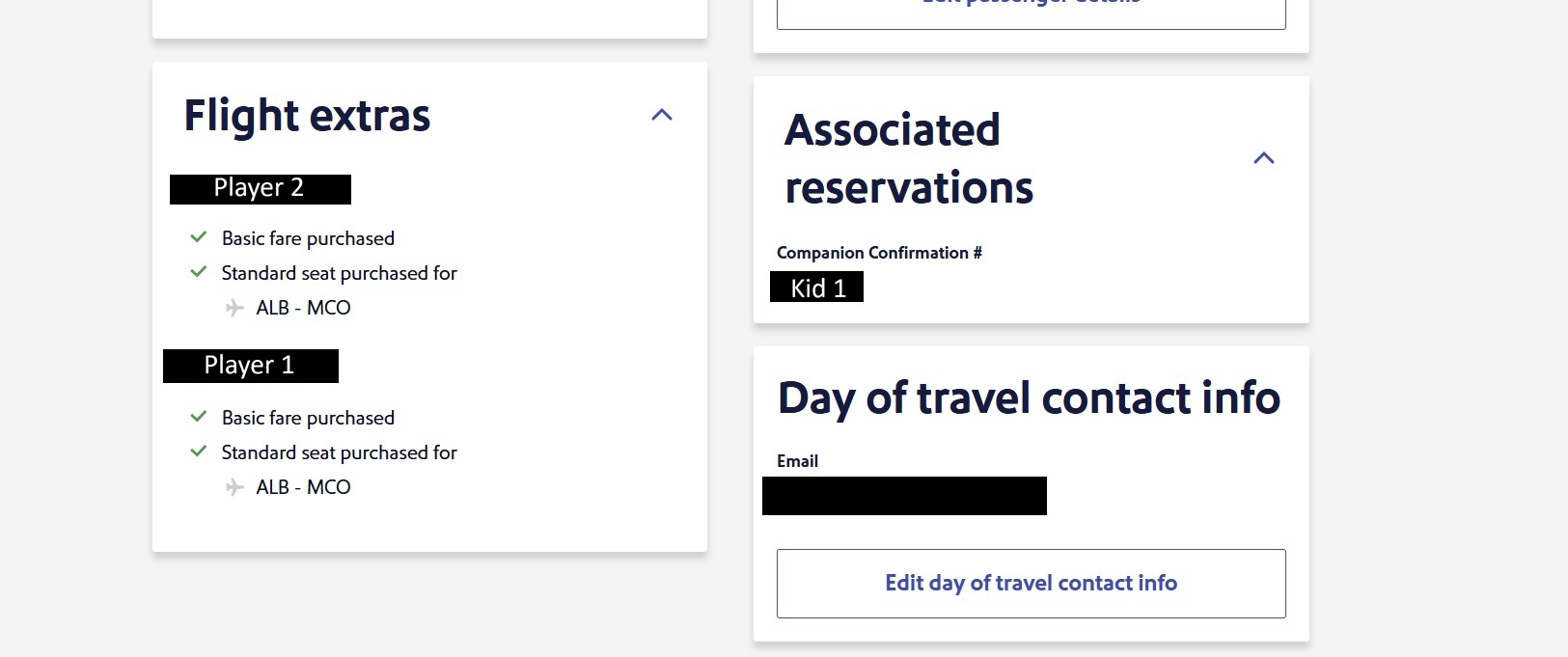
For a short while, I thought that we might just need to book Player 1 and Player 2 under separate reservations, as the reader was told. However, I found a key reader tip that provided the solution.
The solution: Add your companions via the Southwest app
I had made a reference to the above restriction in a post a couple of months ago. In response, reader Melissa reported that they were indeed still able to add two companions to a single PNR and had done so the same week.
Since I wanted to make this work, I tracked down that comment (with Stephen’s help). Here was the exchange:
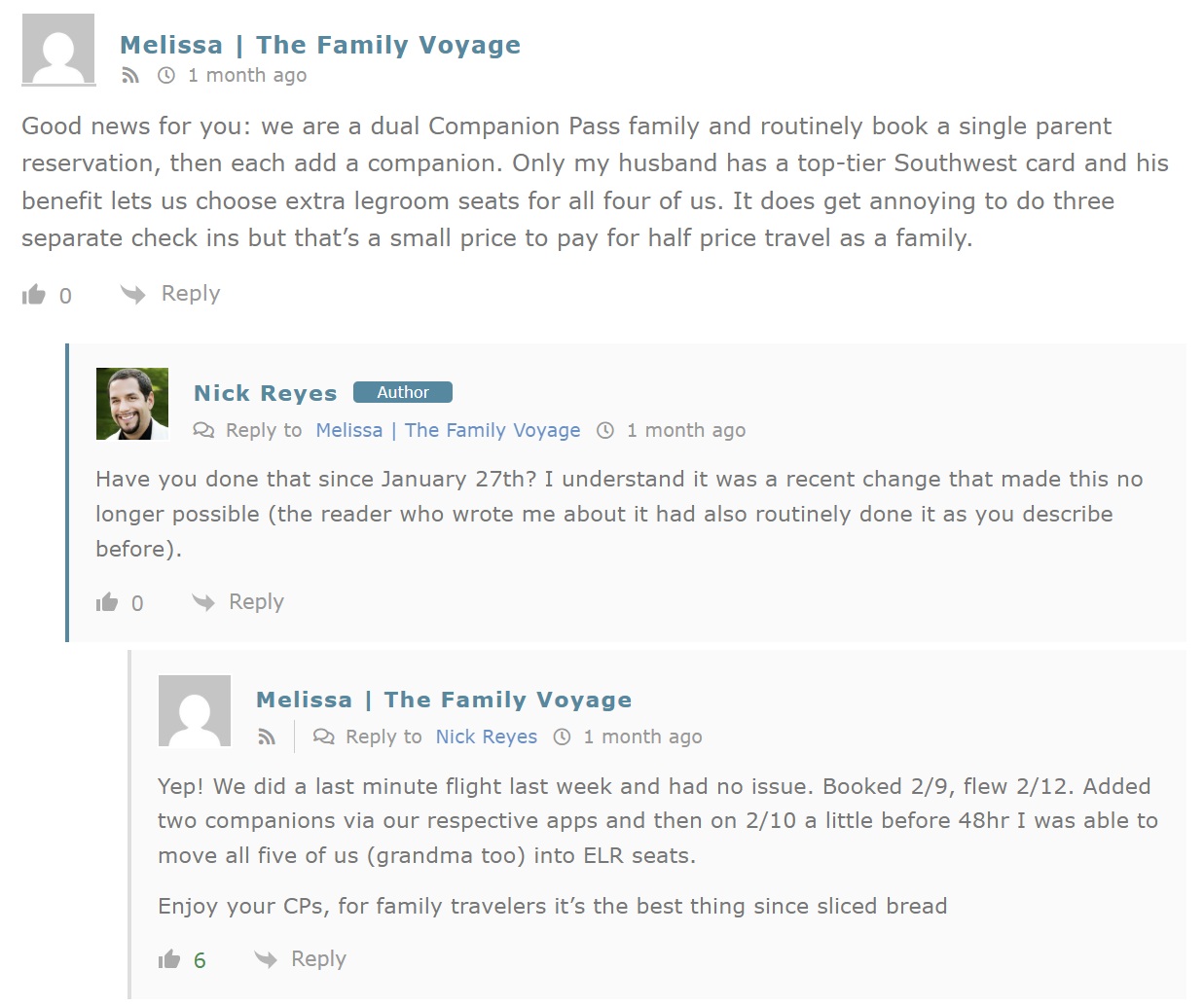
The second comment held the missing puzzle piece: Melissa said that they added two companions via their respective apps.
I pulled up my wife’s Southwest Airlines app. Sure enough, even though there was no button to add her companion when she viewed the reservation details on desktop, Player 2 did see a button to add her companion when managing the reservation in the Southwest Airlines app. It was as simple as you’d hope to add a second companion.
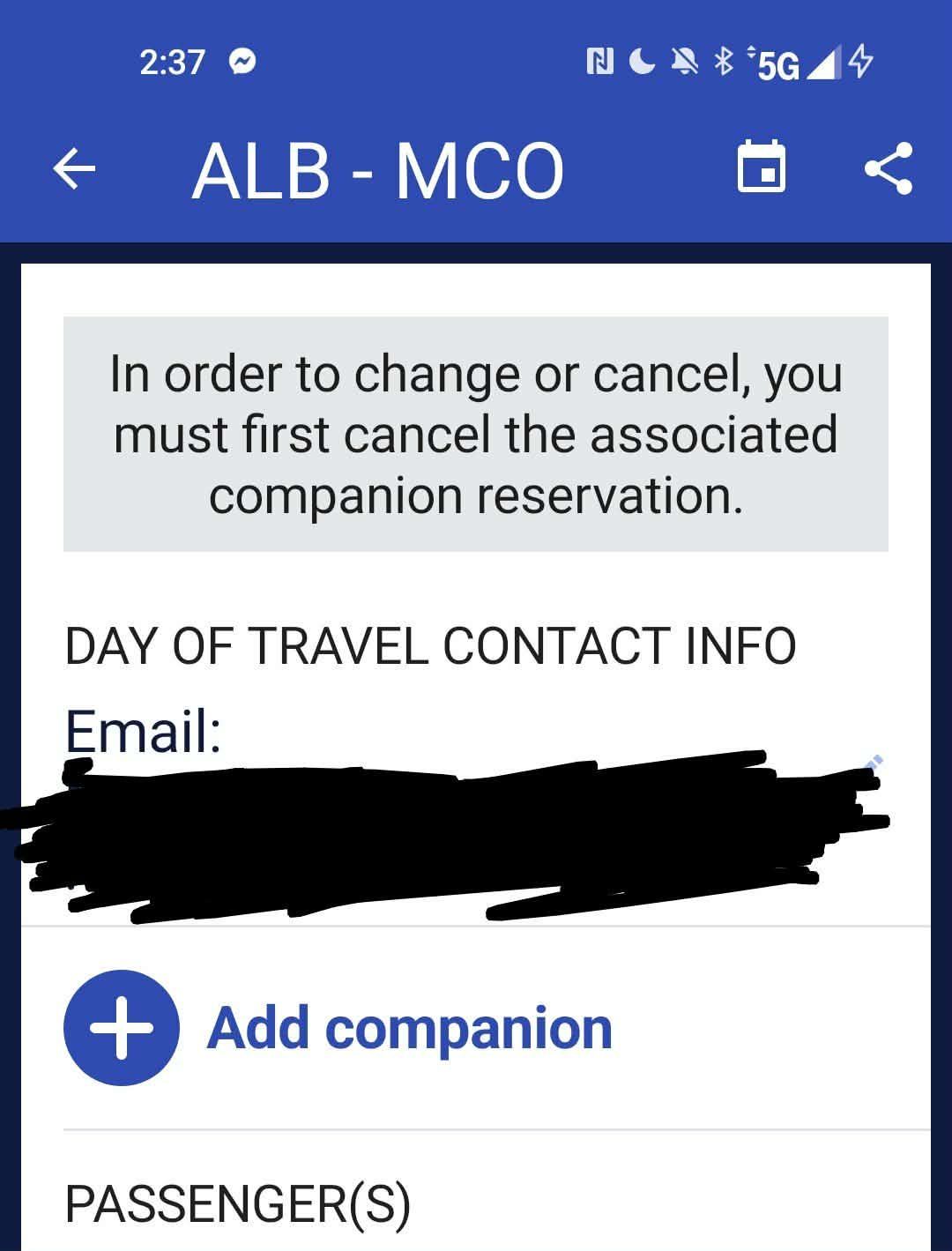
Interestingly, after adding the second companion, my wife refreshed the reservation on the desktop site. Sure enough, it immediately showed both associated companion PNRs. It seems that the desktop system has no trouble displaying companion reservations for both companions, but the desktop system doesn’t provide a way to add the second companion.
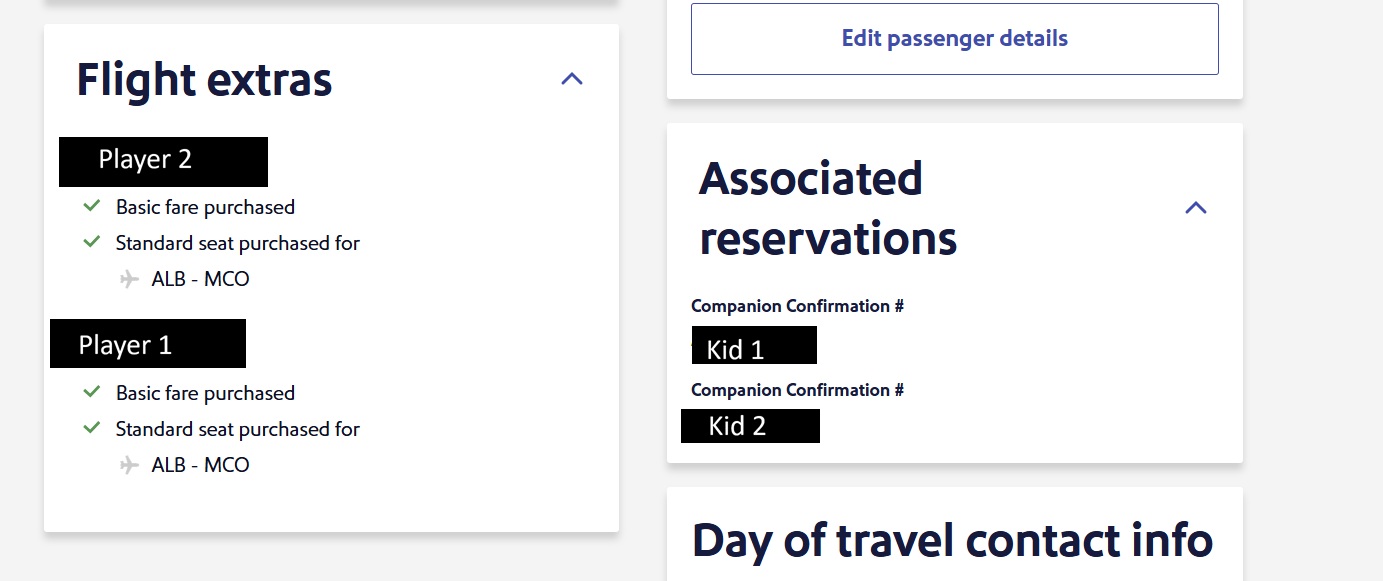
It’s worth mentioning that Southwest still makes this a really unideal situation in that the companions always get separate PNRs. This app workaround puts Player 1 and Player 2 on a single confirmation number (PNR), but Kid 1 and Kid 2 still have separate confirmation numbers. That’s a total of 3 separate PNRs, which means completing the check-in process 3 separate times. There’s no way around that when you have a Southwest Companion Pass. This technique — adding both companions to the same reservation via the app — only reduces us from needing 4 separate confirmation numbers to 3 separate confirmation numbers. I still wish it weren’t that complicated.
I should also note that it is not possible to daisy-chain companions. In other words, it is not possible for someone to be added as a companion and also add his or her companion (like if Player 1 booked a ticket and added companion Player 2, and then Player 2 tried to also add Kid 2 to the same booking). The scenario in this post works because both Player 1 and Player 2 are buying tickets and adding their respective separate companions.
This is a great reminder that apps are sometimes better than desktop sites
This is a great reminder that it is well worth becoming familiar with airline and hotel apps. While it might seem counter-intuitive, there are plenty of times when something that can’t be accomplished on the desktop site can be accomplished via the app (or vice versa in some cases).
I’ve long known that to be true, but for some reason, I just didn’t expect Southwest to have better tech in its app than on its website. That’s probably a bias I have for setting very low expectations for Southwest tech, but in reality, it makes sense. Mobile use has grown to the point where many websites see far more hits via mobile than via desktop. I’m not surprised to see some companies designing for a mobile-first audience.
Still, mobile just isn’t generally my go-to for stuff like this. While I use my phone all the time (far too much at times in the eyes of those around me), my habit remains to use a desktop computer for “important” stuff like travel reservations, banking, etc. However, this was a great reminder that desktop just isn’t always the best option. It is worth checking mobile apps for additional capabilities.
 Want to learn more about miles and points? Subscribe to email updates or check out our podcast on your favorite podcast platform.



Question:
I (P1) have Alist and we as a family of 4 have 2 companion passes.
I can’t seem to get free seat selection for P2 companion and/or ELR @ 48hrs in (w/o brute force customer service calling).
My manual work around is booking 3 seats via points (P1, P2, and Companion 2). In that situation I can select seats. Then I call in to have Companion 2 swapped from points to a companion fare and they just use same seat selection. Now at 48hrs in I still can’t get a free shift on Companion #2)
Are we saying that if I book P1 & P2 on app via points. Then each use the app to add companions we dont have an issue here on P2 seats not being free on the basic fare when P1 has Alist.
Ive had 5 flights as a family so far since Februay and prefer to have a more streamlined method here. Any advice appreciated.
Love it! I had to deal with this siutation for over a year now and had to call into customer service everytime. I used the discount promo codes from multiple credit card discount offers of 5 rapid reward members so it was ideal to book all (minus companions) on one reservation, plus all get A list perks. Southwest use to easily allow adding 2 or more companions on one reservation via PC. Don’t know why they disallowed that feature. Many thanks on the App feature being able to add companions.
Great post. Southwest can be a bit of a pain with their website sometimes, so having these steps handy is a lifesaver. Definitely bookmarking this for our next family trip—the points we’ll save are going to make the vacation way better.
Now, Nick, be honest. Why in the world are you going to MCO with two kids? (Emphasize “World.”)
Glad this worked for you!
Now to level up… one tip I mention in my own article on the companion pass is that the separate confirmation number creates an annoying situation once your companion turns 13: they need their own TSA PreCheck number!
Obviously that’s fine if you know in advance since we all have a million cards that give credits for it, but we didn’t realize that when we flew just a few days after our older kid’s birthday last year. Security would not let him through the PreCheck line, which really sucked for our return flight from LAX (it was before you could do the application via CLEAR).
Hi, if I may ask, how were you all able to get ELR? My P2 (SW Plus card) is now the companion pass holder and I am the companion with SW Performance card. He could only book himself in the back of the plane. Will I be able to move us up within the 48 hours or just me? I believe he booked in the app. Thank you for any info you or anyone may have!
edit: I think i found the answer, he is doing the booking as the companion pass holder so he is the primary card holder in this case so the plus card benefits govern. Is there a workaround?
Hey Holly, I think you’re spot on that it’s because you have the top-end card while the actual person on the main reservation doesn’t. We haven’t run into that issue because our companions are both minors who can’t have credit cards anyway.
There’s a simple fix, but I don’t know if you’ll want to do it… P2 would need to upgrade from the Plus to the Priority, a $130 difference but I believe it would be prorated so I wouldn’t do it until a week before your next Southwest flight.
If you decide to go that route, you could also ask Chase if you can downgrade your Biz Performance card and receive a prorated refund… which you could do immediately. Or if you anticipate being the companion long term and won’t be flying Southwest on your own, you could even completely cancel your Biz card when the annual fee hits.
Is it worth the maneuvering? If you fly Southwest a lot (which we do), I think so. We’ve had a fairly high success rate with ELR seats and it would be 100% if we didn’t have the kids and grandma flying with us. We’ve also been able to board early enough that overhead bin space isn’t an issue, which is important to us because we typically fly with 3-4 carry on suitcases.
Hope this helps!
Thanks Melissa! Yes I want to upgrade P2 since I’m companion this and next year and I like the front half of the plane :-), especially ELR which seem to open up. My research shows P2 cant upgrade until after 12 months of having the SW plus? Is that written in stone or is it just a call to Chase? I haven’t considered downgrading my Perf since I like the extra annual points, but it might make sense for now at least when P2 is CP holder. Thanks!
You miss 100% of the shots you don’t take. They’d be much more likely to allow an upgrade than a downgrade. Heck, if you ask there might even be a bonus to upgrade.
Thanks for the heads up.. The entire last year I had to call and have the agent add the second companion to our reservation